Building a Voice Controlled Chromecast
I hate ads and I keep losing my remote, so I built a voice controlled Chromecast
I don’t like ads (who does?). I prefer to mute them while streaming or watching my favorite sport. I use chromecast with google tv for my home tv and I routinely experience the frustration of sitting through an ad while frantically searching for the remote that’s somehow disappeared into the couch cushions again.
I lose my Chromecast remote constantly. It’s small, and it blends into everything. By the time I find it, I’ve already sat through three ads for things I’ll never buy.
So I thought - what if I could just yell “Hey TV, mute” the moment an ad starts? No remote needed. Just my voice and sweet, sweet silence.
Turns out, you can control these devices using ADB (Android Debug Bridge) commands over WiFi. The Chromecast runs Android under the hood, so all the standard Android keyevent commands work. This opened up a whole rabbit hole.
Starting with the basics
I already had a Python script that could send commands to my Chromecast - things like play, pause, home, back, and navigation with the d-pad. It works by connecting to the device over ADB and sending keyevents. For example, keyevent 24 is volume up, keyevent 3 is home button. Simple stuff.
The script looked something like this for sending a command:
def send_keyevent(self, keycode):
    cmd = ['adb', '-s', self.device_id, 'shell', 'input', 'keyevent', str(keycode)]
    result = subprocess.run(cmd, capture_output=True, text=True)
    return result.returncode == 0
Adding voice control
The interesting part was adding voice recognition on top. I used Python’s SpeechRecognition library which can tap into Google’s speech recognition API. The idea is simple:
- Listen continuously to the microphone
- When you hear “Hey TV”, treat whatever comes next as a command
- Map that command to the right Chromecast action
- Execute it
The tricky part was the command mapping. People don’t always say things the exact same way. Someone might say “volume up” or “turn up the volume” or just “louder”. All of these should do the same thing. So I built a command map that handles variations:
COMMAND_MAP = {
    'volume up': 'volume_up',
    'louder': 'volume_up',
    'turn up': 'volume_up',
    'turn up the volume': 'volume_up',
    # ... and so on
}
There’s also fuzzy matching as a fallback. If someone says something that’s not an exact match, the script looks for partial matches or common words.
The pairing situation
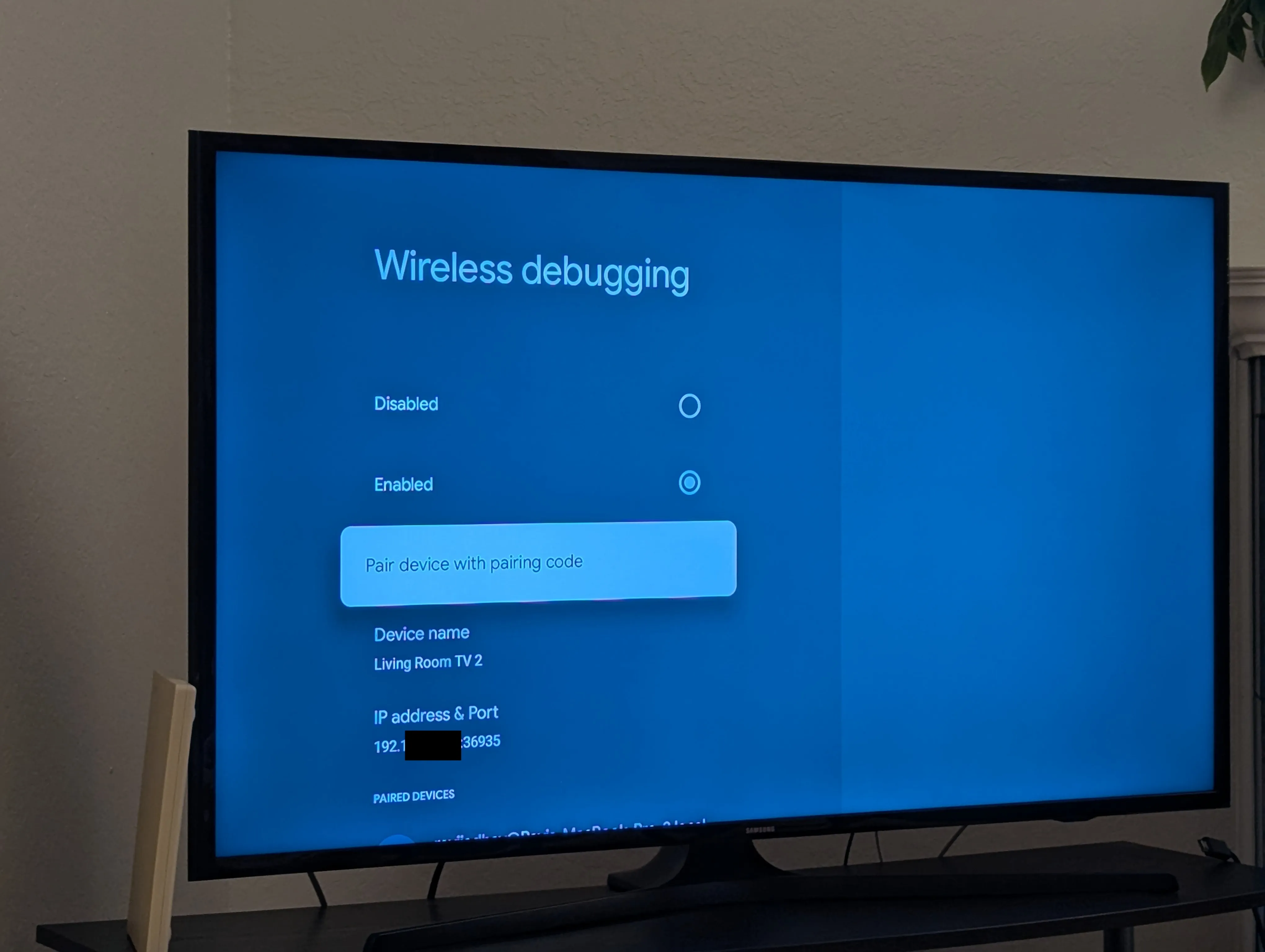
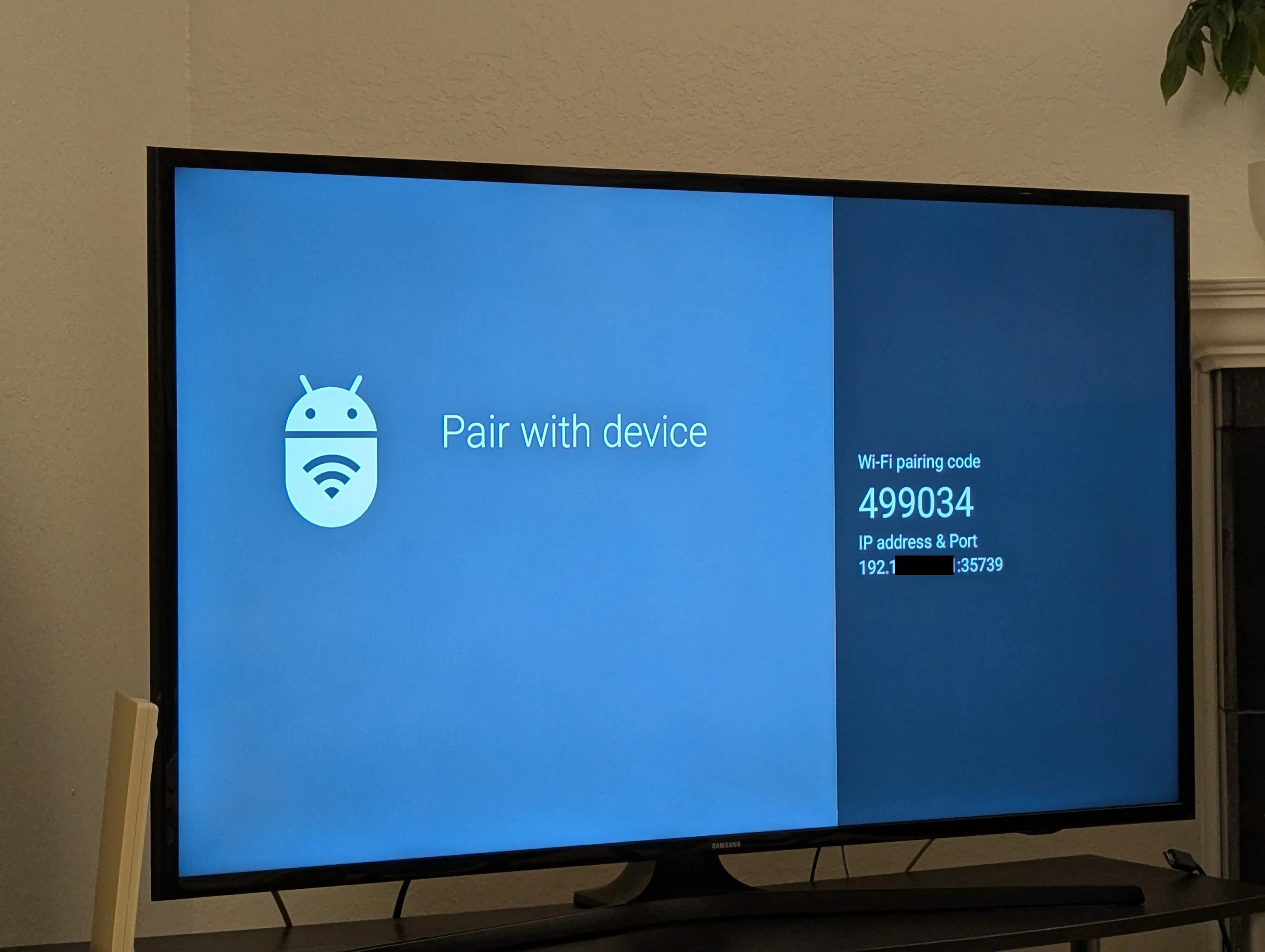
One thing that tripped me up was the ADB pairing setup. When you enable wireless debugging on the Chromecast, there are actually two different ports involved:
- Pairing port: A temporary port that shows up when you click “Pair device with pairing code”. It comes with a 6-digit code. You use this once to pair your computer with the device.
- Connection port: The persistent port shown in the wireless debugging menu. This is what you use for all your commands after pairing.
Here’s what the wireless debugging menu looks like - notice the IP address and port at the bottom:
And when you click “Pair device with pairing code”, you get this screen with a temporary pairing port and 6-digit code:
I initially had these confused and kept wondering why things weren’t connecting. Once I sorted that out and saved both to a config file, everything became much smoother.
Making it easy to set up
I didn’t want to remember IP addresses and ports every time. So I added a setup wizard that runs automatically if you haven’t configured anything yet. It walks you through:
- Entering your Chromecast’s IP address
- Pairing with the device (if needed)
- Setting the connection port
- Testing the connection
All this gets saved to ~/.config/chromecast-automation/config.json so you only do it once.
What works and what doesn’t
Navigation, playback controls, and app launching all work great. I can say “Hey TV, open Netflix” and it launches Netflix. “Hey TV, pause” pauses whatever is playing. “Hey TV, home” takes me back to the home screen.
Volume controls are a different story. On my setup, I have a speaker connected to my TV via Optical Cable and volume is controlled via IR - meaning the Chromecast directly sends the event to my speakers. As a temporary workaround I kept the volume control with chromecast. I havent explored connecting the tv to my speaker via HDMI-CEC but thats on my radar next.
Was it worth it?
Absolutely. The moment an ad starts playing, I just say “Hey TV, mute” and I’m free. No more digging through couch cushions. No more watching the same car commercial for the hundredth time.
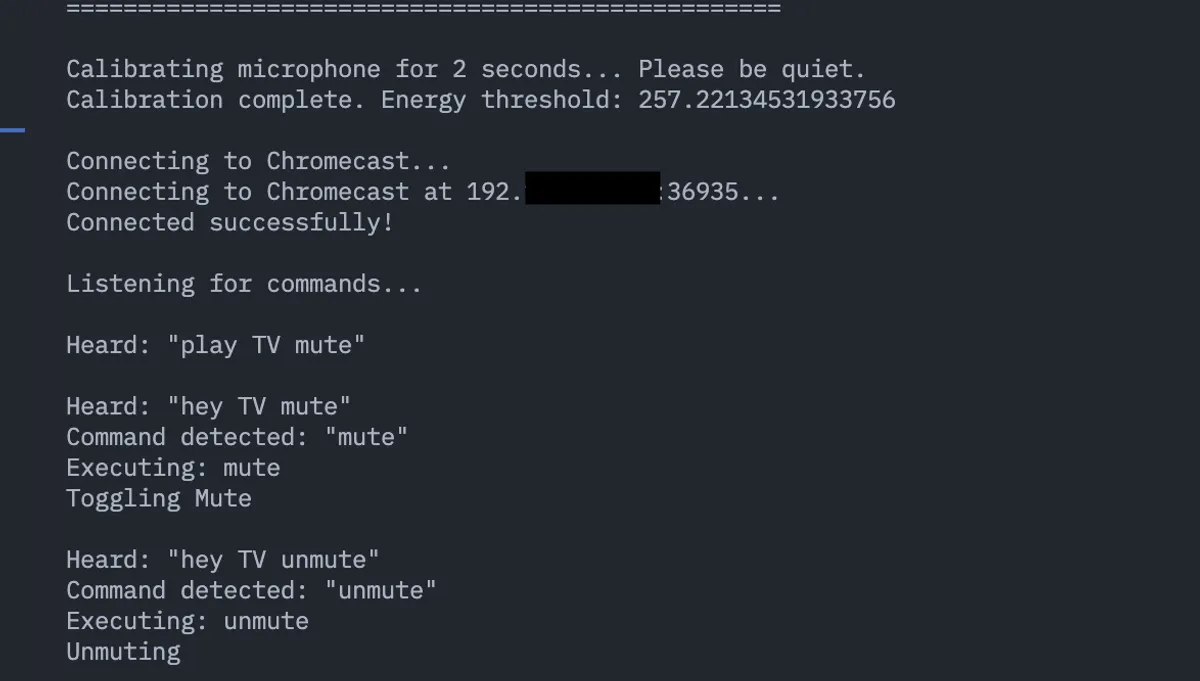
Here’s what it looks like in action:
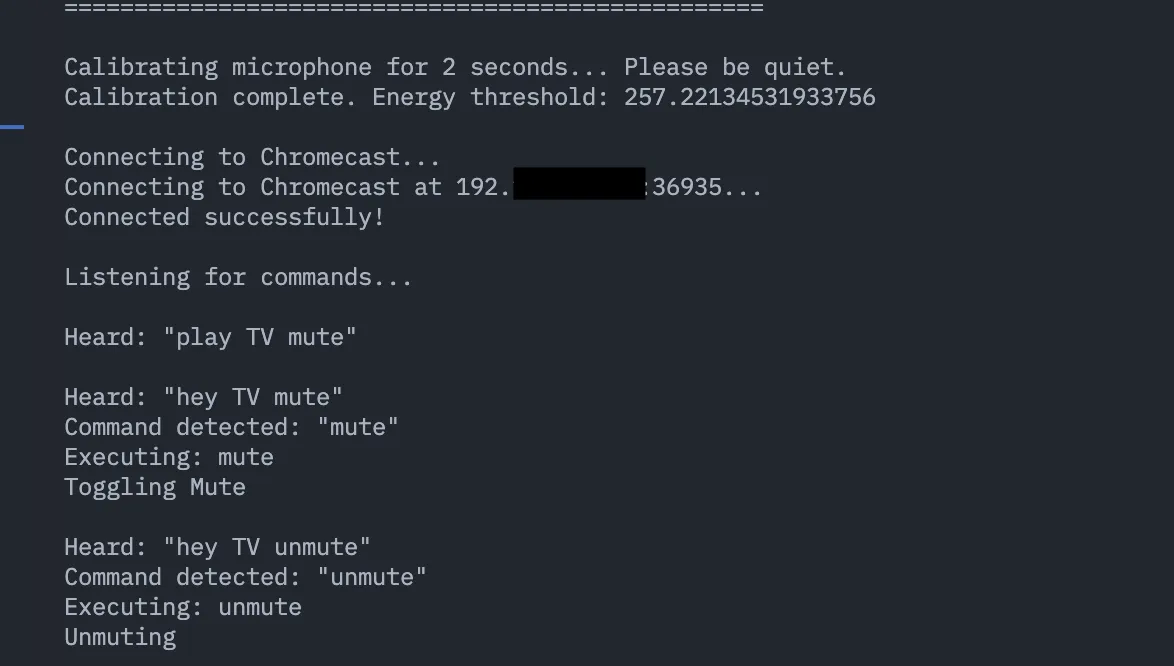
The whole project is just a few Python files - one for the remote control logic, one for voice recognition, and one for configuration.
If you have a Chromecast with Google TV and want to try this, you just need Python, ADB installed, and a microphone. The hardest part is getting the initial ADB pairing set up, and even that’s just following prompts on your TV screen.
Sometimes the best projects come from pure annoyance. Ads and a missing remote were annoying enough to make me build this. Now I just need to figure out how to automatically detect when ads are playing so I don’t even have to say anything.